

Common steps for changing settings
- Open Settings and review the current values in each section.
- Change only the fields you intend to update. Review them when Save becomes available.
- Select Save and check for the settings-saved confirmation.
- Refresh the page or return to the section later to confirm the values persisted.
General settings
Under General settings, choose Language (Korean or English) and Currency (KRW or USD), then select Save. Confirm that the selected values are reflected in the console. Changing the currency does not convert existing amounts; only the display unit changes. If Orders or budgets already exist, check with your operations owner before changing it.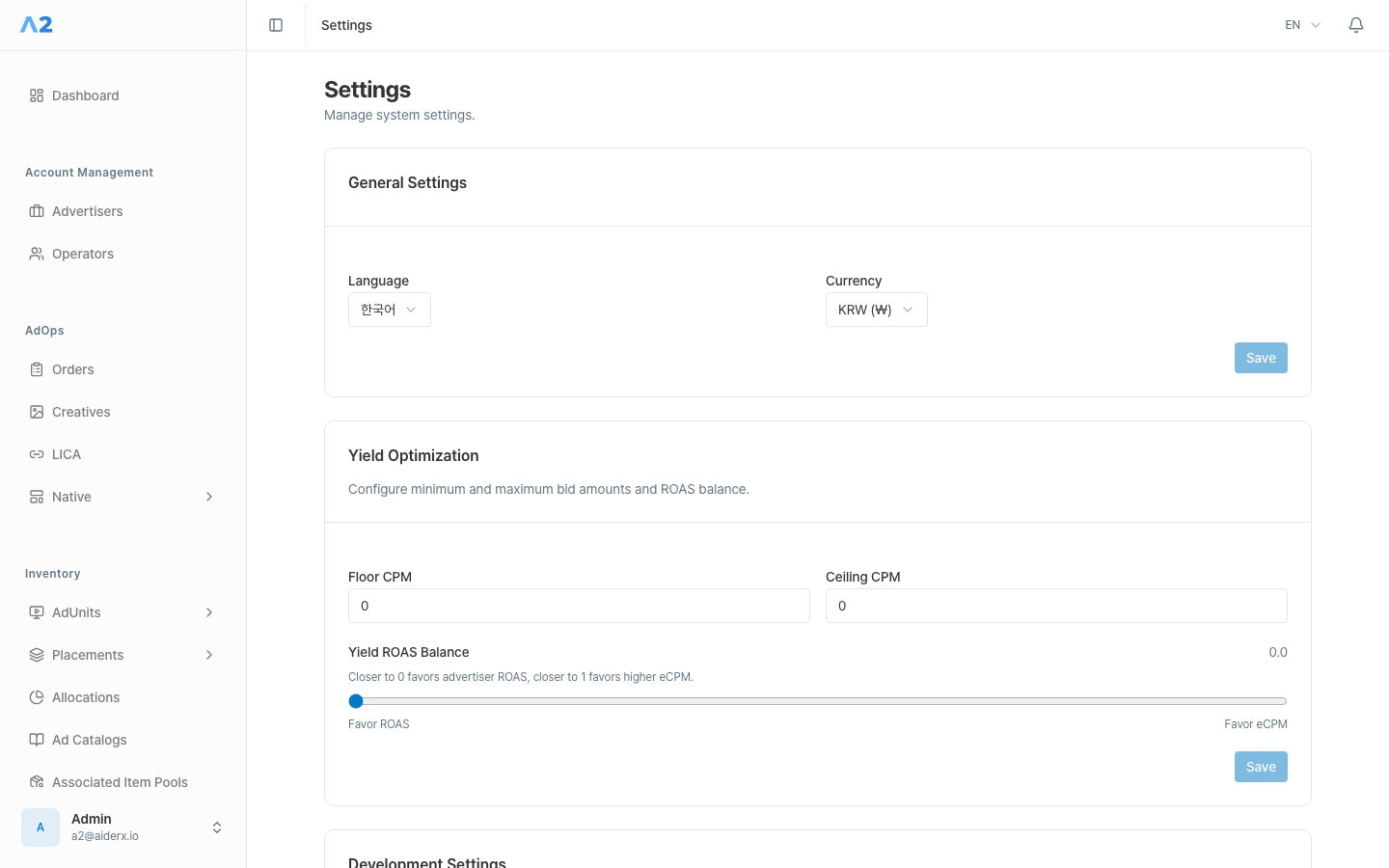
Yield optimization
The Yield Optimization section lets you update Floor CPM, Ceiling CPM, and Yield ROAS Balance.- Enter non-negative CPM values. If both values are above zero, Floor CPM must be less than or equal to Ceiling CPM.
- The ROAS balance slider ranges from 0 to 1. Values closer to 0 favor advertiser ROAS; values closer to 1 favor eCPM.
- Review the values, select the section’s Save, and confirm the success message.
Site customization
In Site Customization, configure the following fields and select Save:
After saving, check the user-facing page to confirm that the footer and news appear as intended. Review HTML before applying it because it changes the rendered page.
Development settings
Development Settings includes the token type and access token, External Channel URL, Public URL, and the Developer Features (advanced) switch.- Enter an External Channel URL and Public URL, or leave them blank. Values must start with
http://orhttps://. Read each field’s description and use only URLs confirmed by your organization. - Developer Features (advanced) turns on experimental features. Incorrect settings can affect ad delivery, so change the switch only when you understand the need and risk. Select Save and check that the expected features are available.
- To regenerate an access token, use the regenerate control and confirm Regenerate in the dialog. The old token becomes invalid. Coordinate the replacement with the integration owner, update dependent systems, and verify they work with the new token. Never paste a token into documentation or a support request.