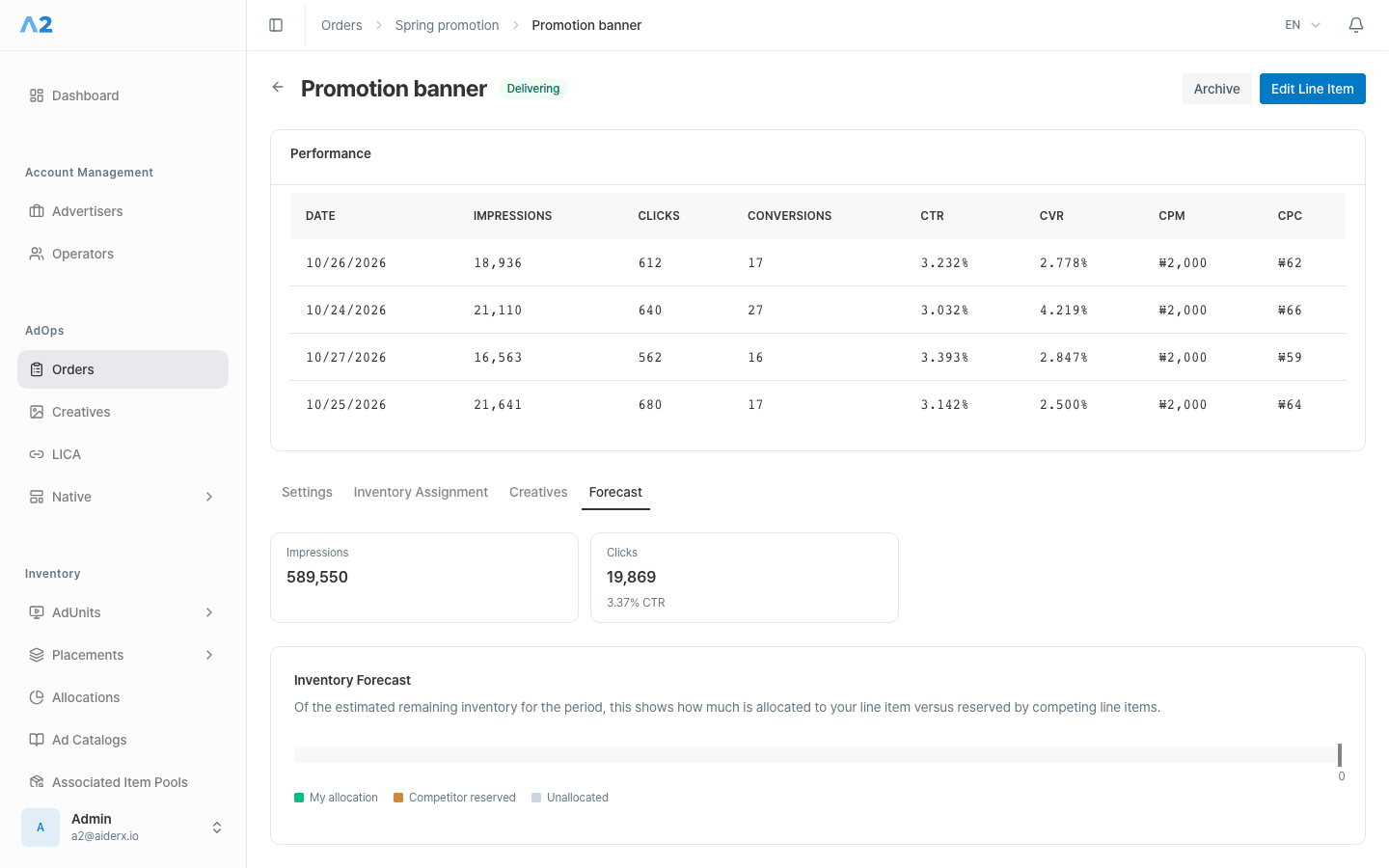

Promotion banner in Spring promotion for Brand A as its example.
Before you start
- Confirm that
Spring promotionis active. A new Order is a draft; select Activate on its detail page before adding a Line Item. - Choose the Line Item’s start and end times within the Order period.
- Prepare the goal, budget or target values, and targeting conditions for the ad type.
- If you are signed in as an advertiser, you can work only with your own Orders and Line Items.
Create a Line Item
1
Add a Line Item from the Order
Open
Spring promotion from Orders, then select Add Line Item. The advertiser is fixed to the Order’s advertiser.2
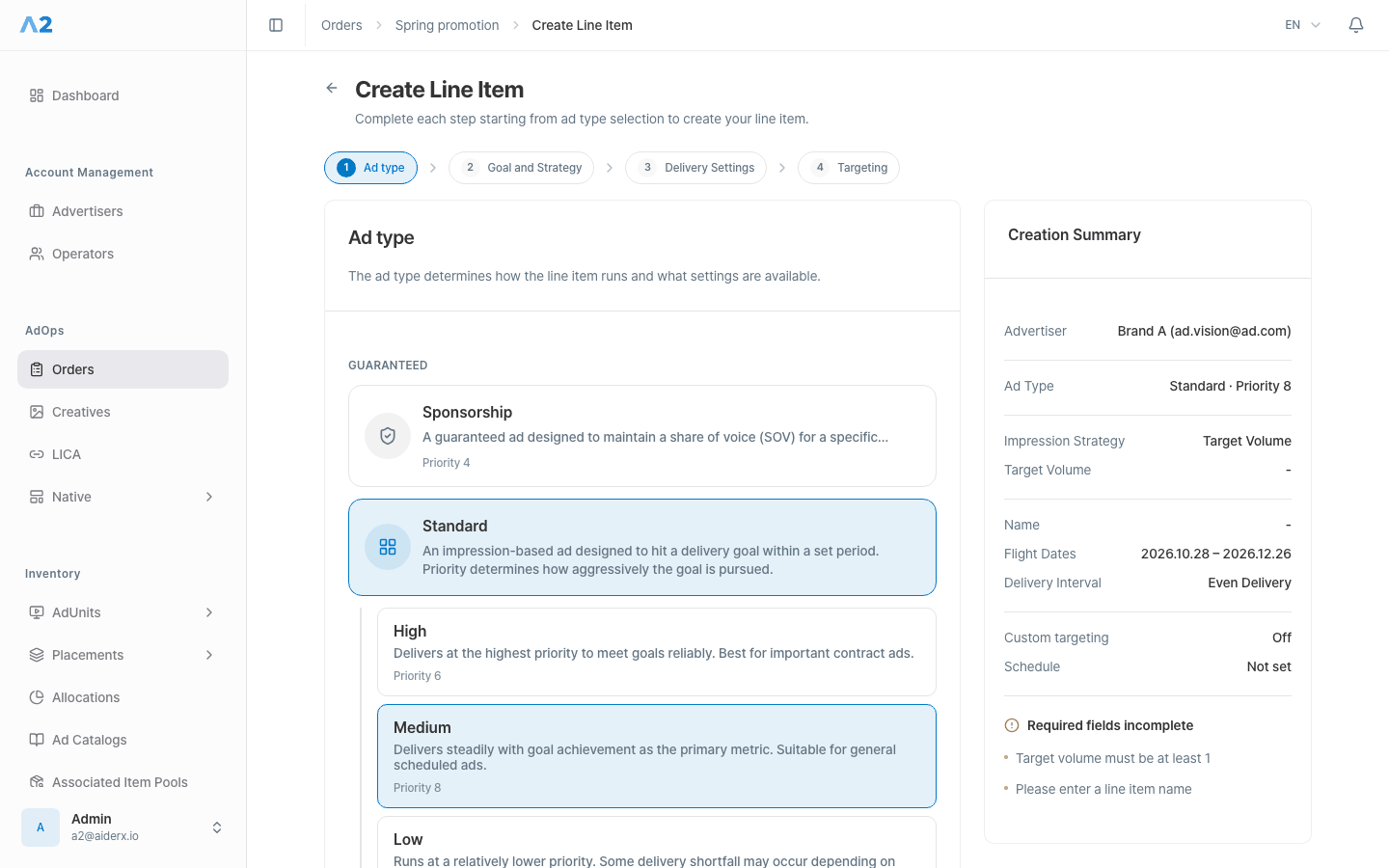
Ad type
Choose the ad type that fits the delivery terms. Types marked Coming soon cannot be selected. The following steps differ by type. See Choose an ad type for selection criteria.
3
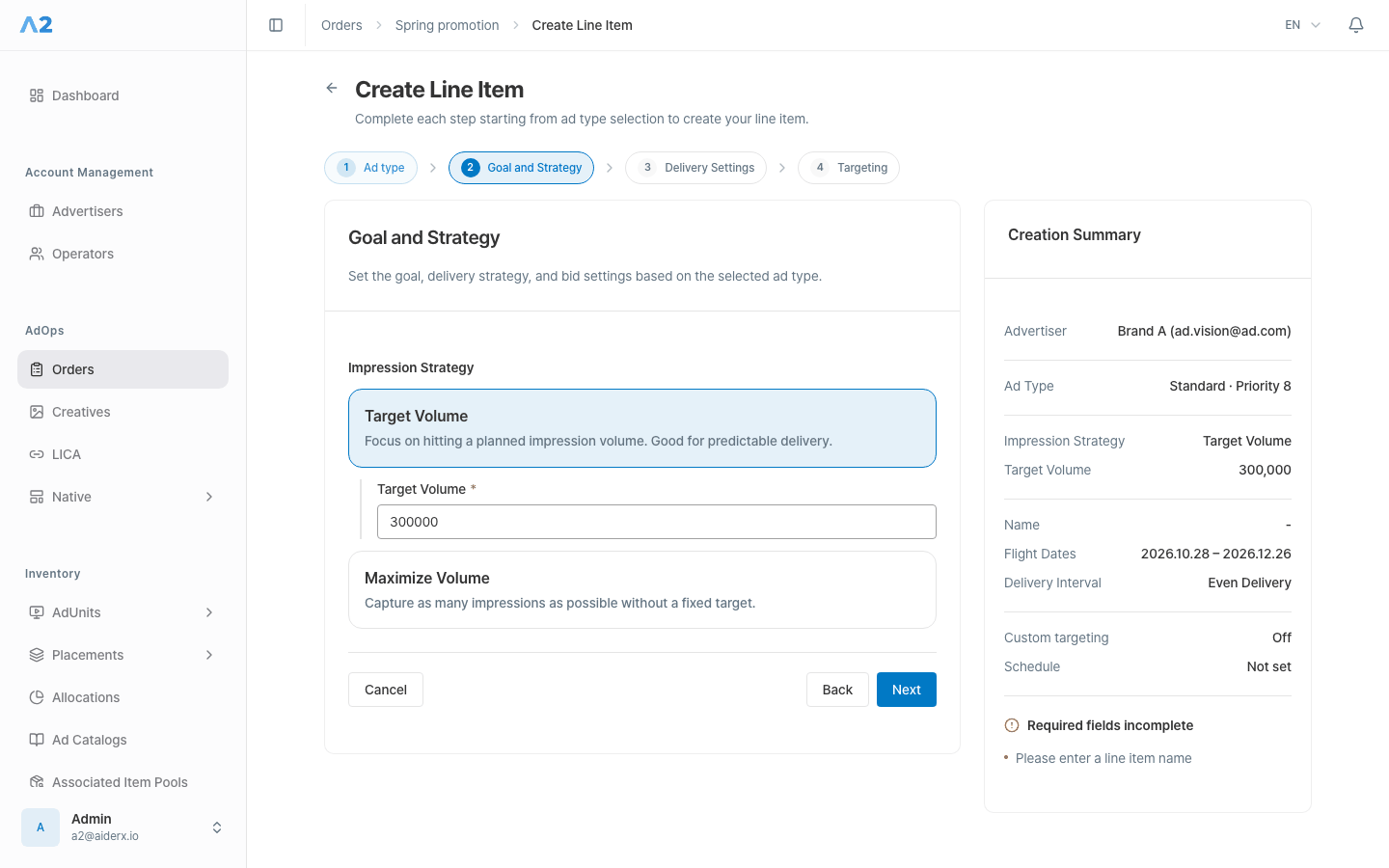
Goal and Strategy
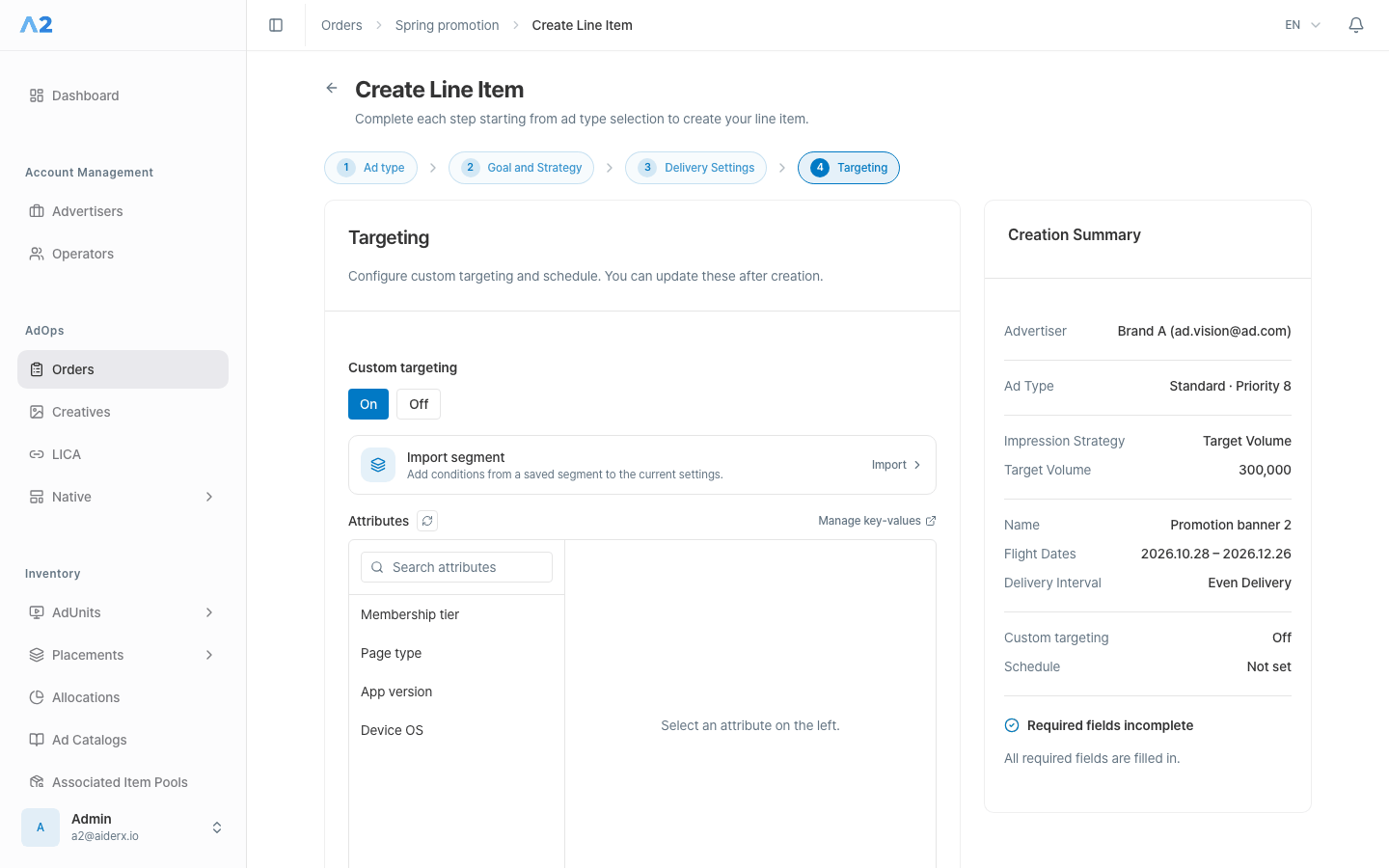
Choose the impression strategy. Standard offers priorities 6, 8, and 10, plus Target Volume or Maximize Volume; with Target Volume, enter the target value. Sponsorship and House also take the name and flight dates in this step.
4
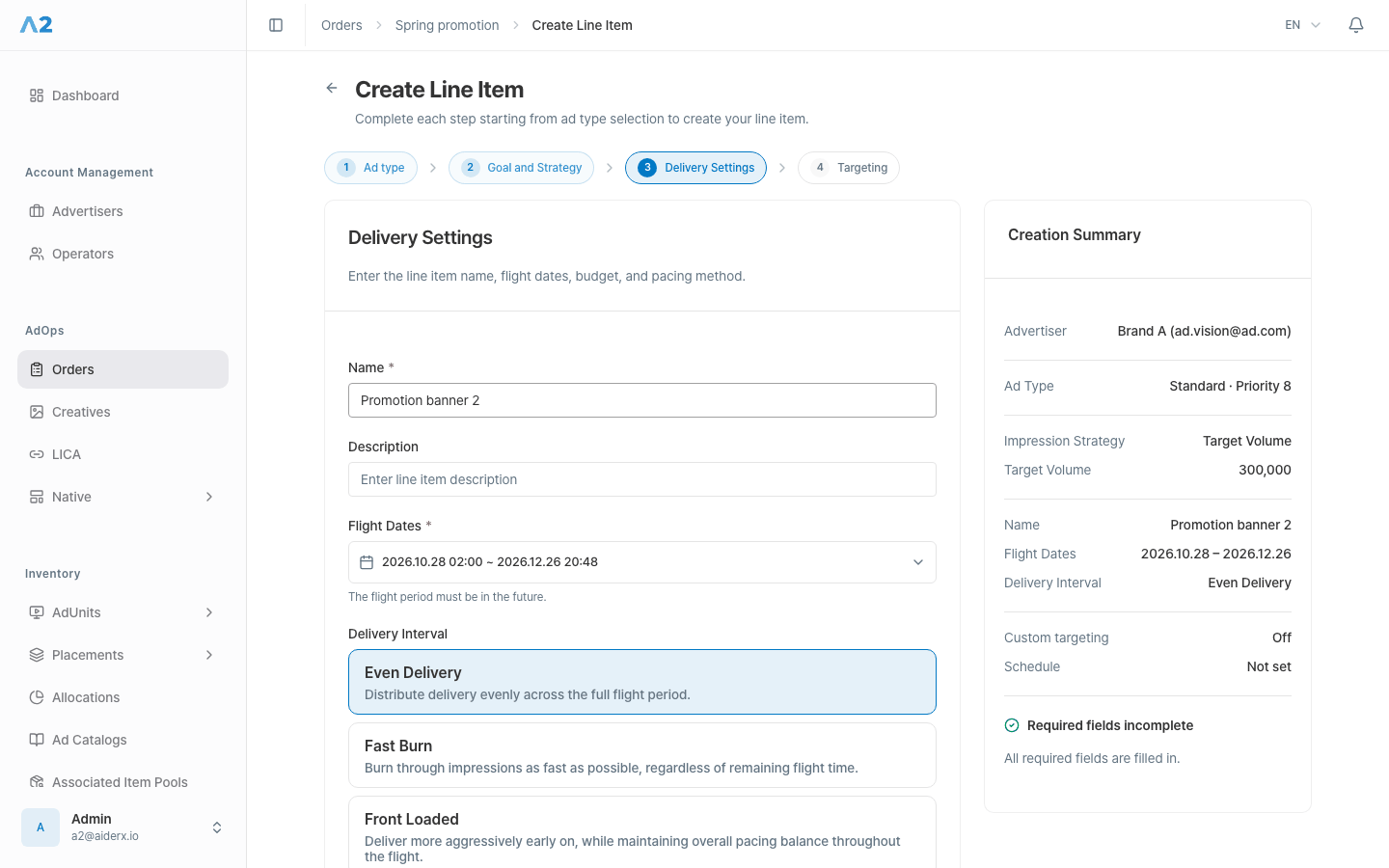
Delivery Settings
Enter
Promotion banner as the name and add a description if needed. Set the flight dates within the Order period, and set Budget and the Delivery Interval if required. The maximum available budget shown under the field is the advertiser account balance. When you save, the budget is checked against the Order’s remaining budget. The amount you assign to the Line Item is subtracted from the Order budget.5
Targeting and create
Select the required targeting conditions. Review the advertiser, type, goal, period, and budget or target values in the Creation Summary, then select Create Line Item.
Verify the result
After saving, review the name, type, goal, period, and budget or target values on the Line Item detail page. A newly created Line Item is Draft. A draft item cannot be used for an inventory assignment. Select Activate on its detail page to move it to Ready, then link creatives. Activating a Line Item does not start delivery by itself. Register a creative, link it to the item, then assign an AdUnit or Placement and complete approval and delivery setup. See Register and link creatives and Request an inventory assignment.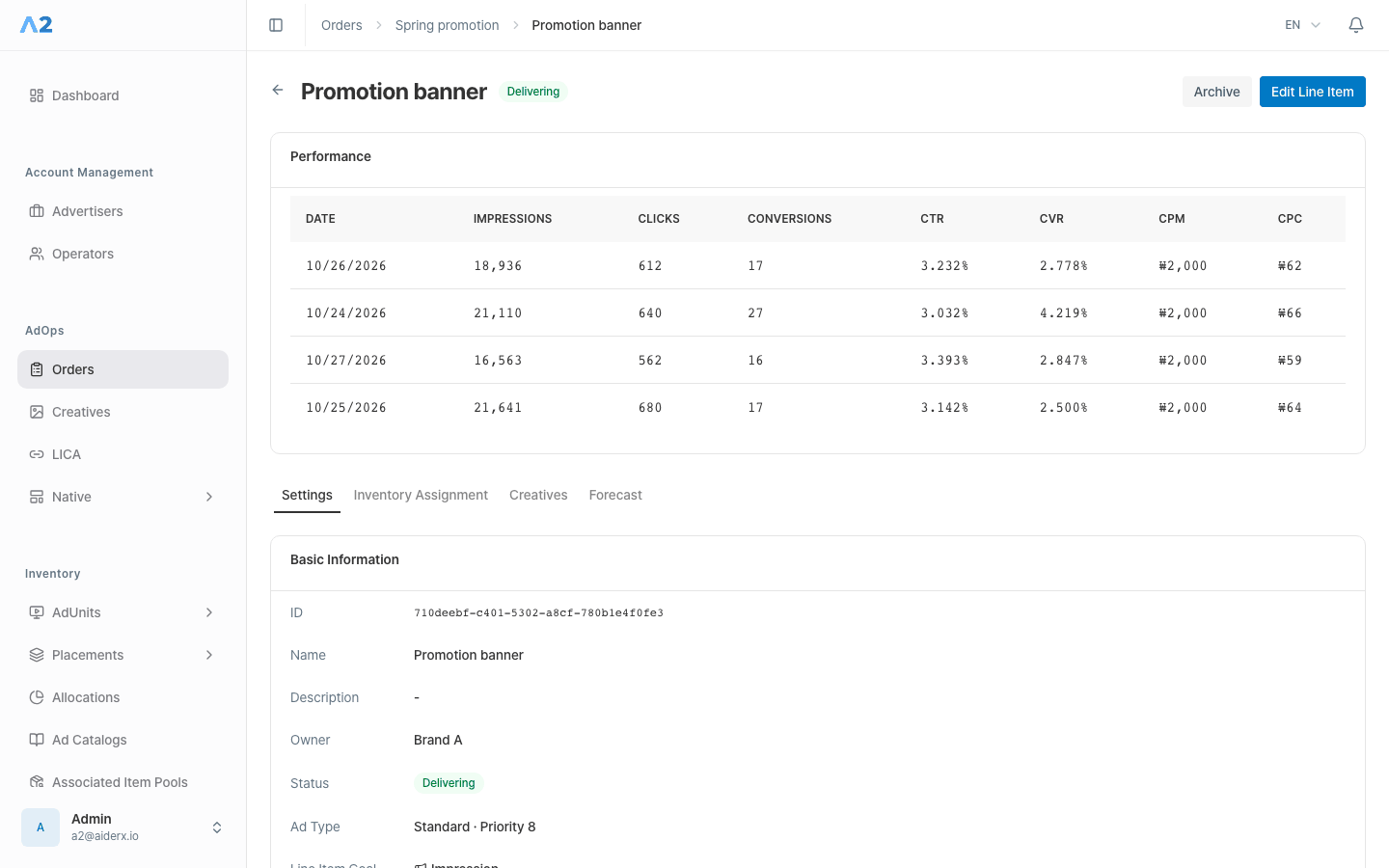
Check the delivery forecast
The Forecast tab on the Line Item detail page shows whether the Line Item can reach its goal in the remaining period. It is based on estimated inventory from AdUnits covered by published Allocations, including AdUnits in an allocated Placement.- Inventory Forecast: Of the estimated remaining inventory, shows My allocation for this Line Item, Competitor reserved by other Line Items, and Unallocated volume.
- Delivery: Against the Target Volume, shows impressions Served so far, Forecasted additional delivery, and volume that is Unreachable within the period.
- Goal Pacing: Compares goal progress with the time elapsed and shows On Track, Caution, Delayed, or Underdelivery Expected.